BitLocker To Go is a Windows security feature designed to encrypt removable storage devices, such as USB flash drives and external hard drives.
The contents of this guide
Setting up BitLocker
Note! Encryption cannot be enabled on Windows 11 Home edition, and the encrypted drive is not accessible on Linux or macOS systems without third‑party tools. It is also recommended to format the USB drive before encryption if it does not already contain files that need to be encrypted.
- Connect the USB or external drive to your computer.
- Open File Explorer.
- Click the drive with the right mouse button.
- Select Turn on BitLocker.
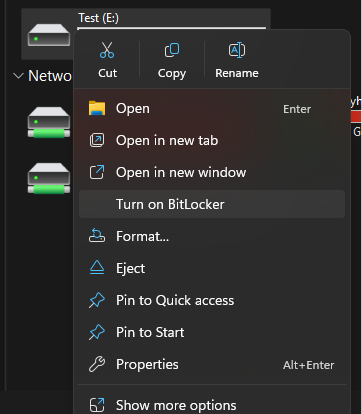
- Select Use a password.
- Type in and confirm a strong password.
- 8 characters minimum.
- preferably letters, numbers and symbols.
- Save the recovery key created by the tool.
- for example to your Microsoft account or as a file.
- The drives on UO / OUAS work computers are protected, so saving the recovery key through Save to a file is not possible. In this case, select Print the recovery key, then choose Microsoft Print to PDF from the Printer list and save the file to a location of your choice.
- Select encryption mode.
- On an empty drive you can select Encrypt used disk space only.
- If you did not format the drive, select Encrypt entire drive (the time this will take depends on the size of the media).
- Select Compatible mode.
- Press Start encrypting.
Going forward
- When connecting your drive:
- Windows will ask for the BitLocker password.
- Without the password the files are inaccessible.
- If you forget the password, you will need the recovery key.
Note! If you lose the password and the recovery key, the files cannot be restored!
Removing BitLocker
- Connect the USB or external drive to your computer.
- Input the BitLocker password when asked.
- Open File Explorer.
- Click the drive with the right mouse button.
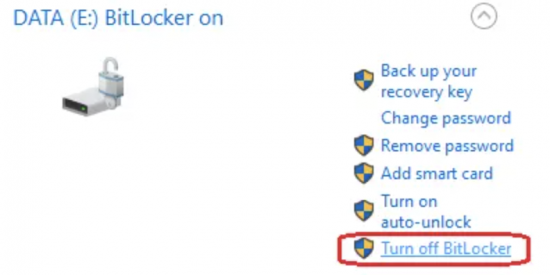
- Select Manage BitLocker.
- Select Turn off BitLocker.
- Confirm selection.
Formatting your drive
- Connect the USB or external drive to your computer.
- Open File Explorer.
- Click the drive with the right mouse button.
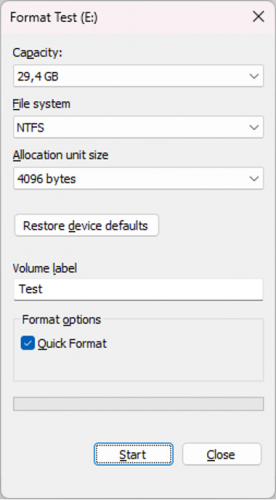
- Select Format.
- If you want to, you can set a name for the drive in the Volume label field.
- Select Start
 .
.
« Back
This article was published in categories English version available, All instructions, Oamk , for Oamk staff, for Oamk students, for the University of Oulu staff, for the University of Oulu students, Saavutettava ohjeartikkeli, UniOulu and tags computer security, BitLocker, suojaus, tiedostot, tietojen tallennus, tietosuoja. Add the permalink to your favourites.