This guide provides an overview of the basics and key instructions for getting started with a new Mac computer managed by Oulu universities.
If you need help with setting up your new Mac device, click here to open the setup quick guide.
Contents of this guide
- Signing in
- File storage
- Applications and admin privileges
- System and software updates
- Using external monitors or lecture hall presentation technology
Signing in
You no longer need to be connected to the university network when signing in to a cloud-managed computer for the first time. Instead, you can sign in using your home network or any other available internet connection. Sign in with your user account in its short format, without the @ suffix.
The new password you created during the setup process is your computer’s local password. It is not linked to your organization account password. If you change your organization account password, we recommend that you also update your computer’s local password so that they remain the same.
You can change your computer password by going to System Settings → Users & Groups, then clicking the info button next to your user profile.
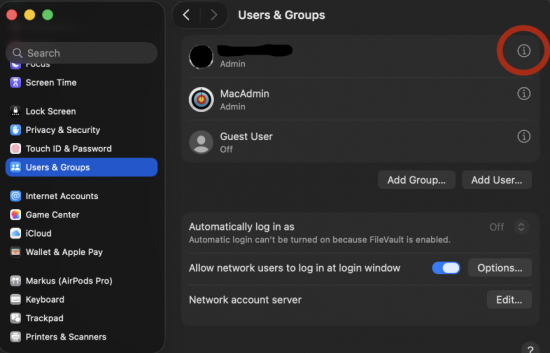
If you forget your computer login password, please contact our support service by sending a support request via email to ict@oulu.fi or by calling our support number at 0294 483 124.
File storage
Once your computer is set up, you’ll automatically have access to OneDrive with 100 GB of storage. Your Desktop and Documents folder are synced to the cloud by default. If you need additional storage, it can be purchased at €0.15 per GB per month, subject to your supervisor’s approval.
The first time, OneDrive must be launched manually from the Applications folder. OneDrive will then prompt you to sign in, after which backup will be enabled automatically.
Files stored in OneDrive are also kept locally on your computer, meaning they use disk space. You can free up local storage by using the Files On-Demand feature: right-click a file in OneDrive and select Free up space. The file will remain available in the cloud but will be removed from your device until you open it again. When you open a file, it downloads temporarily and syncs back to the cloud after use.
For storing sensitive data, network drives remain available as an alternative.
More information about OneDrive: https://ict.oulu.fi/3416/
Connecting to your personal network drive on Mac: https://ict.oulu.fi/1343
Applications and admin privileges
Microsoft Edge, Microsoft Defender, and the Office suite are pre-installed on the device.
On centrally managed Mac devices, admin rights are restricted, and software installation is primarily done through our Company Portal service or the Apple App Store. You can find the Company Portal in your computer’s Applications folder. The Company Portal provides a growing selection of applications, including the software required for VPN access as well as tools for installing print queues.
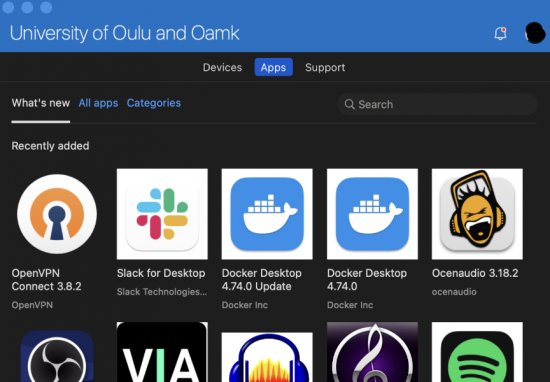
If the software you need is not available in the Company Portal, you can contact our support service and we will do our best to make it available there. You can also visit our ICT service point at the Linnanmaa campus if you need assistance with installations. In special cases, you may request temporary administrator rights by sending a request via email to ict@oulu.fi. Please include a detailed description of your need in your request.
More information about Company Portal: https://ict.oulu.fi/3470/
Remote desktops
The remote desktop application Windows App can be installed from the Company Portal. With Windows App, you can connect to various remote desktops. Alternatively, you can access a remote desktop through your browser at: https://avd.oulu.fi.
Printer queues
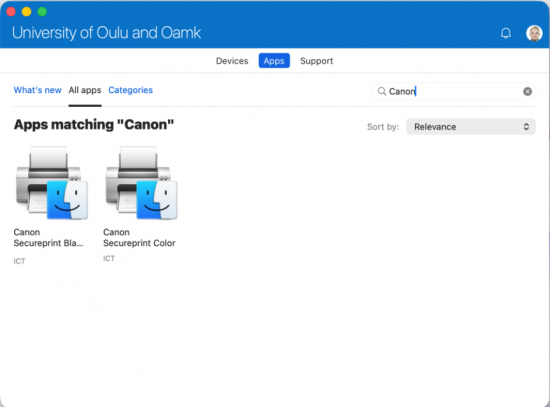
You can install printer queues from the Company Portal by searching for “Canon”. Please note that to print, you must be connected to the campus network (eduroam or owlan) or be using a VPN connection.
VPN
You can use FortiClient or OpenVPN applications to establish a VPN connection. Both VPN applications are available for installation through the Company Portal.
The OpenVPN application requires an additional VPN profile to function, which must be renewed every 180 days. You can create the profile by following these instructions: https://ict.oulu.fi/20988/ (University of Oulu) or https://ict.oulu.fi/18295/ (Oamk).
System and software updates
System updates are installed on your computer automatically. You will be notified when a new system update is available, and you can choose when it will be installed on your device. Applications installed via the Company Portal are also actively maintained. Updates are deployed either automatically or made available for optional installation, depending on the application.
Using external monitors or lecture hall presentation technology
Mac computers require the DisplayLink Manager application to work with classroom AV systems. The DisplayLink Manager can be installed from the Company Portal, and it is required for outputting video to external displays and projectors.
DisplayLink Manager for Mac: https://ict.oulu.fi/18272/