This guide provides an overview of the basics and key instructions for getting started with a new Windows computer managed by Oulu universities.
Contents of this guide
Signing in
You no longer need to be connected to the university network when signing in to a cloud-managed computer for the first time. Instead, you can sign in using your home network or any other available internet connection. Sign in with your user account in the format username@univ.yo.oulu.fi or username@oamk.fi.
You can check your username and set or reset your password, if needed, through the service at https://account.oulu.fi.
When you sign in for the first time, you’ll be prompted to set up Windows Hello. This allows you to sign in using a PIN code (at least six digits), facial recognition, or fingerprint recognition (if supported by your device). This makes signing in faster, as you don’t need to enter a long password each time.
By default, the sign-in screen shows the most recently used method. You can switch between sign-in methods by selecting Sign-in options. If your PIN or facial recognition isn’t working, you can also use this menu to sign in with your password.
NOTE! If you’ve forgotten your password, you can reset it using another device, such as your phone, by going to https://account.oulu.fi/passwd and selecting I don’t know my password. After verifying your identity through the Suomi.fi service, you can set a new password and use it to sign in to your computer.
With new computers, you don’t need to be connected to Eduroam, owlan or the campus wired network, even when signing in for the first time with a new password.
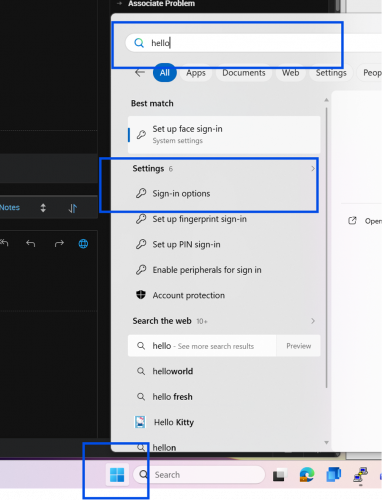
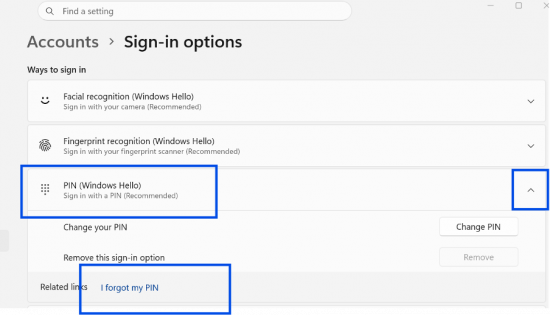
If you’ve forgotten your PIN, sign in with your password and open the Start menu. Search for Sign-in options (you can use the keyword “HELLO”), then select PIN (Windows Hello). Expand the option using the arrow, and choose I forgot my PIN under Related links. You can then reset your PIN using multi-factor authentication.
File storage
Once your computer is set up, you’ll automatically have access to OneDrive with 100 GB of storage. Your Desktop and Documents folder are synced to the cloud by default. If you need additional storage, it can be purchased at €0.15 per GB per month, subject to your supervisor’s approval.
Files stored in OneDrive are also kept locally on your computer, meaning they use disk space. You can free up local storage by using the Files On-Demand feature: right-click a file in OneDrive and select Free up space. The file will remain available in the cloud but will be removed from your device until you open it again. When you open a file, it downloads temporarily and syncs back to the cloud after use.
For storing sensitive data, network drives remain available as an alternative.
More information about OneDrive: https://ict.oulu.fi/3416/
More information about network drives and connecting to one: https://ict.oulu.fi/1343/
Applications
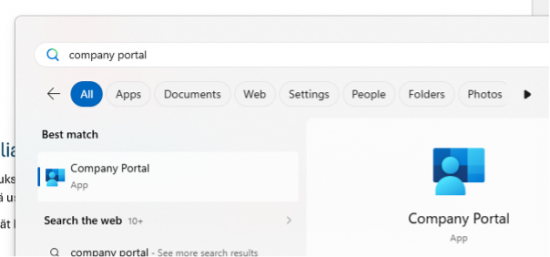
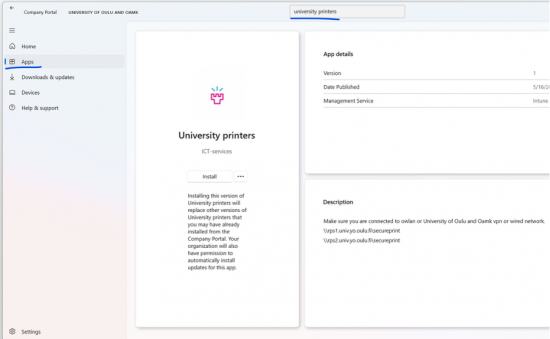
By default, your computer comes with the Microsoft Edge browser and the Office suite pre-installed. It also includes the Company Portal, which allows you to install company-managed applications without needing administrative privileges. From there, you can access items such as printer queues, the FortiClient application required for VPN connections, and an alternative browser, Google Chrome. The university’s printer queues can be found in Company Portal under the name University printers.
On the left side of the Company Portal, you’ll find the Apps section (indicated by a square icon), where you can browse all available applications. At the top of the window, there is also a search bar that lets you quickly find apps by name.
You can install applications that are not available in Company Portal by using Microsoft’s Endpoint Privilege Management (EPM) feature. First, download the application’s installation file. Then right-click the file and select Run with elevated access.
You’ll be asked to provide a justification for the installation. This could be, for example, a project requirement or the need to use a specific tool or device. The request is sent to ICT’s management system, and once it has been approved, you’ll receive a desktop notification. After approval, you can proceed with the installation using the same Run with elevated access option.
NOTE! If Do Not Disturb mode is enabled or desktop notifications are turned off, the notification may not appear on your screen. However, you can still find it in the Notification Center, which you can open by clicking the clock in the bottom-right corner of the taskbar.
More information about Company Portal: https://ict.oulu.fi/3470/
More information about EPM: https://ict.oulu.fi/22330/
Changing the language of Office apps
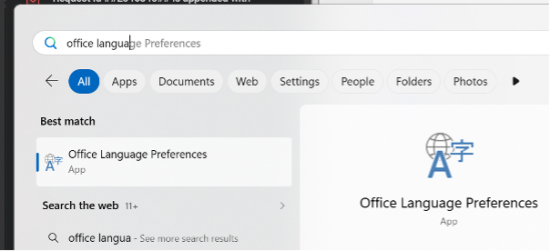
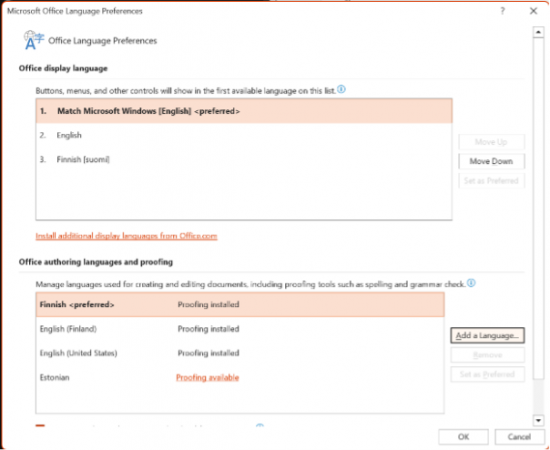
If you want to change the language settings in applications such as Word or Excel, you can do so through the Office Language Preferences option.
Windows Update
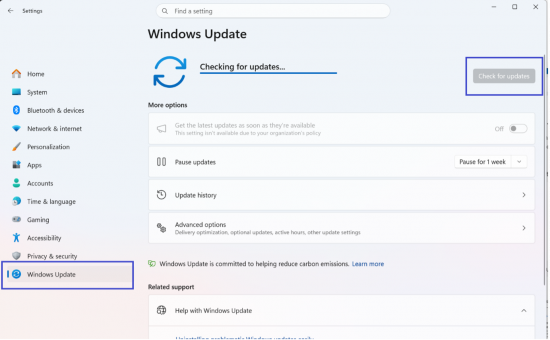
Your computer automatically checks for updates through the Windows Update service about once a month. However, you can speed up the process by going to Settings and selecting Check for updates.
During the initial setup of your computer, there will typically be several updates available, which will install automatically in the background. After some time, your computer may prompt you to restart to complete the installation.
System Update
For Lenovo devices, you can install the Lenovo System Update application from the Company Portal. This tool centrally checks for and installs all updates specific to your device model. Using it can help prevent issues with accessories such as docking stations, external displays, and audio devices.
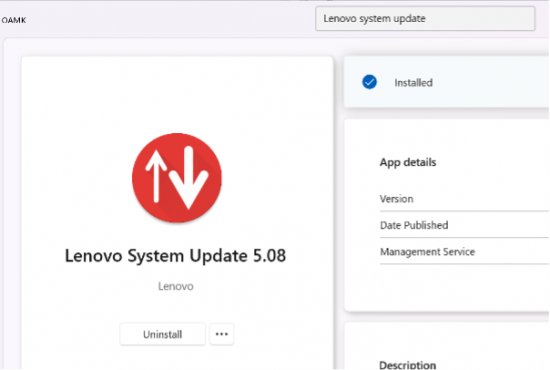
Once the application has been installed, you can find it by searching for System Update in the Start menu. When launching the application for the first time, you’ll be prompted to participate in a development program, you can select No thanks.
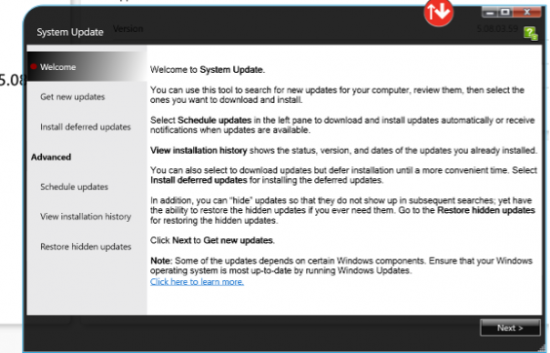
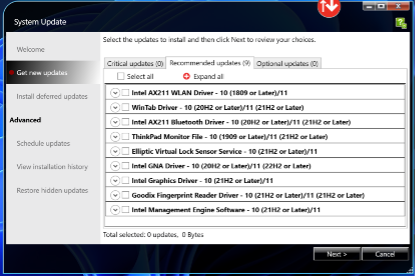
Clicking Next will prompt the program to check for available updates. After that, a window will appear with two tabs: Critical and Recommended.
Select all updates from both tabs, and then click Next to continue.
Your computer should be connected to a docking station or power supply to ensure all updates are installed properly. After installation, the software will typically display a message such as “Your computer needs to restart” and give you five minutes before automatically restarting.
The restart process may take some time, as system components are updated before the Windows sign-in screen appears. This is normal and nothing to worry about.
Once you reach the Windows sign-in screen again, your computer is ready to use.
Important functionality
Outlook
You can choose whether to use Outlook Classic or the new Outlook app, both are pre-installed on your computer. You can sign in to either version using your account in the format username@univ.yo.oulu.fi or username@oamk.fi.
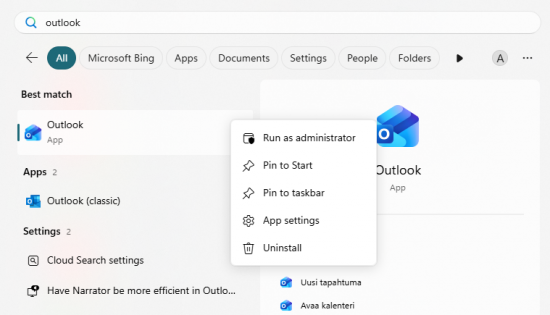
You can search for Outlook using the Start menu search, open it, and then right-click the application to pin it either to the Start menu (Pin to Start) or to the taskbar (Pin to taskbar).
FortiClient
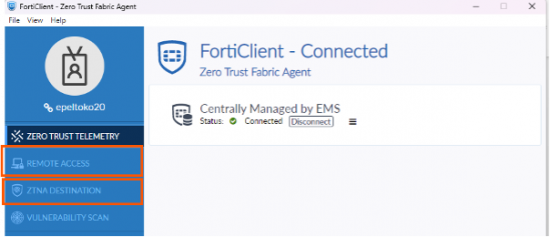
FortiClient provides your device with a secure network connection and safe access to university services when you are outside the campus network. In addition to a traditional VPN connection, FortiClient primarily uses ZTNA (Zero Trust Network Access). This allows you to access a selection of commonly used services without needing to establish a separate VPN connection.
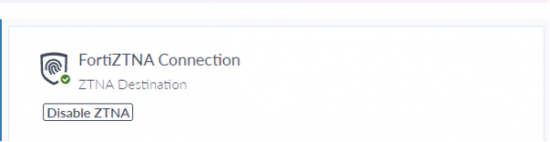
With ZTNA, you can access services such as the student information system (Peppi), the service management system (ServiceDesk/Ahjo), researchers’ virtual machines, and Certia services.
From the Remote Access tab, you can use a traditional VPN connection if you need access to resources not covered by ZTNA, such as the kaappi network drive or certain internal systems. Select either UniOulu VPN or OAMK VPN, depending on your organization.