This guide enables the admin, or administrator, of a Lehmus AI tenant (project) to configure task-specific agents, known as Preset Agents, for their project.
A Preset Agent is a preconfigured AI agent that stores the language model to be used, instructions for the agent, and any tools or datasets.
Who can create an agent?
The project administrator can create an agent for the tenant. An agent created for a tenant belongs to that tenant and cannot be shared with other tenants. Platform-level agents, on the other hand, can be shared with selected tenants or with all tenants, if such agents have been separately configured by the Lehmus AI administrators.
Create an agent
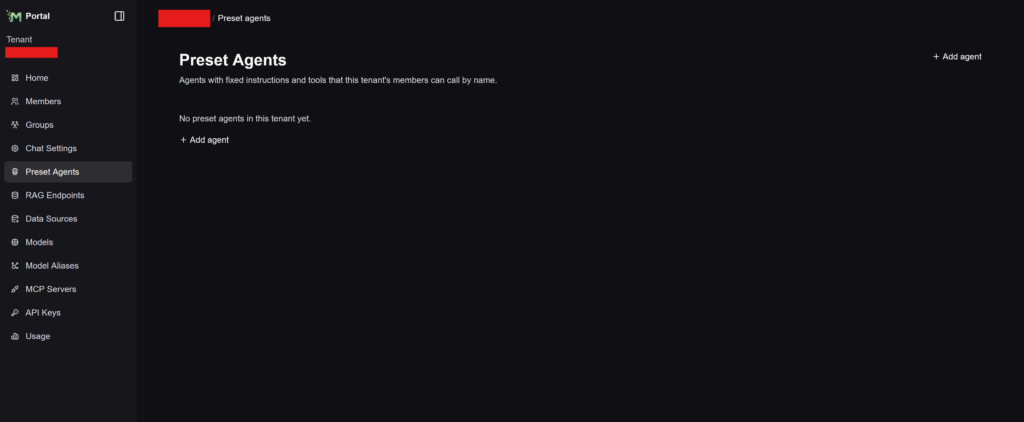
Open Preset Agents in the Lehmus AI portal and select Add agent. The Add agent button is visible to the tenant administrator.
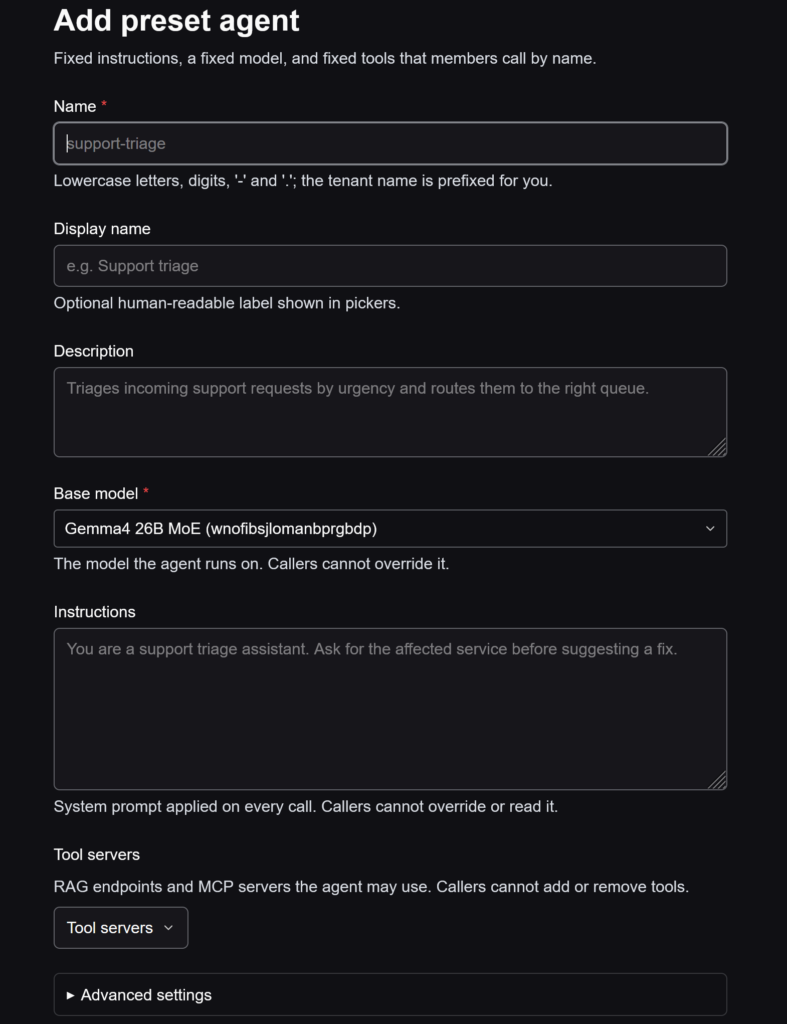
The settings configured for an agent include:
- Name
- Description
- Language model to be used
- Instructions
- Any tool servers
- Model parameters to be locked, if required
- Any Output Guardrails, which check the response produced by the language model against the instructions before sending it to the user
Tools
Entire tool servers can be configured for a Preset Agent. These may be RAG deployments in use or configured in the project, or external MCP servers. Users of the agent can access the tools exposed by the configured servers through the agent.
Output Guardrails
Output Guardrails can be configured for a Preset Agent to check the final response generated by the agent before it is shown to the user. A guardrail uses a separate judge model, which evaluates the response against a policy defined by the administrator.
A guardrail can be used, for example, to prevent a response from being shown if it does not meet the conditions specified for the agent.
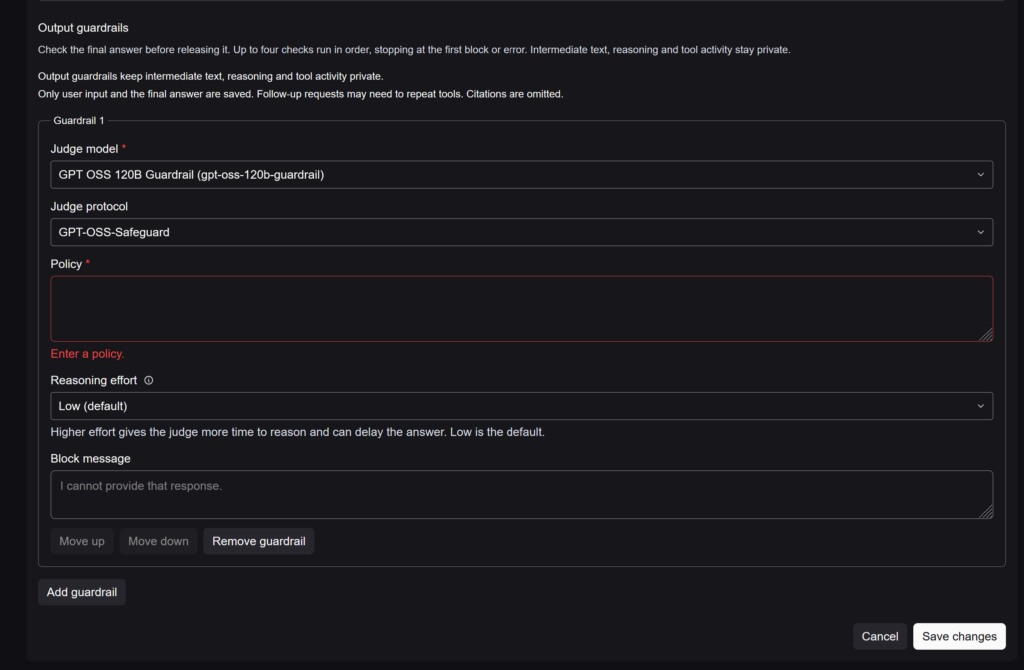
An agent can have up to four Output Guardrails. If there is more than one guardrail, they run in the specified order. Checking stops at the first block or error. If a response is blocked, the user is shown the block message configured for that guardrail instead of the actual response.
Add an Output Guardrail
An Output Guardrail can be configured when creating an agent or later by editing the agent’s settings.
- Open Preset Agents in the Lehmus AI portal
- Create a new agent by selecting Add agent, or open an existing agent and select Edit
- Go to Output guardrails
- Select Add guardrail
- Select the Judge Model to use for the guardrail
- Select the Protocol to use
- Write the Policy that the judge model will use to check the agent’s response
- Set Reasoning effort and Block message if required
- Save the agent’s settings
Policy
Policy tells the judge model the criteria for accepting or blocking the agent’s response. The policy should describe as clearly as possible what needs to be checked in the final response.
For example, in a tutor agent intended for students, the policy could prohibit the agent from giving students direct answers to an assignment.
Block message
Block message is the message shown to the user when a guardrail blocks the response generated by the agent.
If no custom Block message is specified, the system uses a default message.
The Block message should be a clear message that the user can understand, tailored to the purpose of the policy. For example:
“I cannot answer this question for you, as you are responsible for completing your own assignments as a student. However, I can help you understand the subject so that you can complete the assignment independently.”
Reasoning effort
Reasoning effort determines how much reasoning the judge model uses to evaluate the response. The default is Low. A higher reasoning effort setting may increase the time taken to process the response.
A higher setting is worth using when the condition being checked requires more reasoning.
Configuring multiple guardrails
An agent can have up to four Output Guardrails. You can change the order in which they run using Move up and Move down.
Guardrails run in the specified order:
- The first guardrail checks the response
- If the response is accepted, the next guardrail runs
- Processing continues until all checks accept the response or one of the checks blocks it
- If a guardrail blocks the response, the user receives that guardrail’s Block message instead of the actual response
If a guardrail fails to run, the call fails, and the protected response is not shown to the user.
Output Guardrails and the agent’s tools
The agent can use its configured tools even when Output Guardrails are enabled. A guardrail checks the agent’s final response, not the individual intermediate results from the tools. Tool calls and their results remain hidden from the user in this case.
Note
An Output Guardrail does not undo actions that tools have already performed. The guardrail checks the final response before it is shown, but any actions previously carried out by the tools may already have taken place.
Removing guardrails
You can remove an individual guardrail from the agent’s settings by selecting Remove guardrail. Once all guardrails have been removed and the settings saved, the agent no longer has any Output Guardrails enabled.
Give users access to the agent
On the tenant agent’s Users tab, you can specify:
- Administrators, who can manage and use the agent
- Users, who can use the agent in Chat or via the API, but cannot edit it
Use the agent in Chat
An agent that users have permission to access appears in the model menu in Chat as Preset agent: [AGENT NAME]. Using the agent in Chat does not require an API key.
Support and further information
You can find further technical guidance and information about more advanced settings in the ConfidentialMind documentation:
If you encounter problems using Lehmus AI, contact ICT support by email: ict@oulu.fi or ai@oulu.fi.