RAG (Retrieval-Augmented Generation) enables a language model to retrieve information relevant to your question from your own material and use the information it finds to formulate an answer.
What you need before you start
- Access to Lehmus AI
- The material you want to use
Before creating a RAG, check that you have selected the correct project in the Lehmus AI portal. The RAG endpoint and any material added to it belong to the currently selected project.
Create a RAG
Once you have logged in to the Lehmus AI portal, select Get started with RAG on the home page or RAG Endpoints in the left-hand sidebar. On the RAG Endpoints page, click the Create endpoint button.
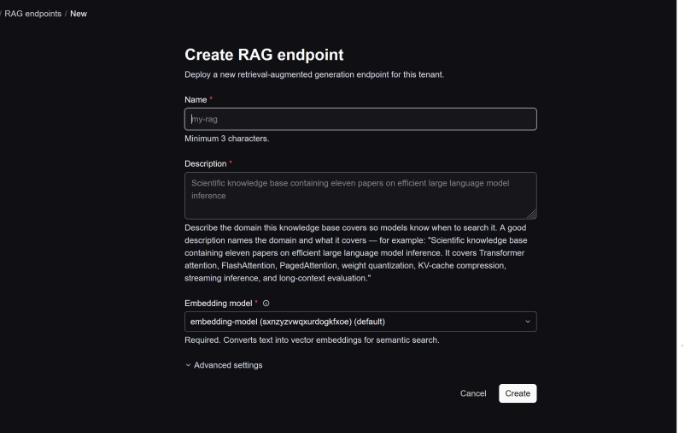
Give your RAG a descriptive name and a description that explains what kind of material it contains. Make the description as clear as possible, as models and agents may also use it to assess when to retrieve information from this source.
Once you have entered the details, select Create.
Wait until the RAG is ready to use
Once created, the RAG opens on its own page. When it is ready to use, its status is shown as Ready.
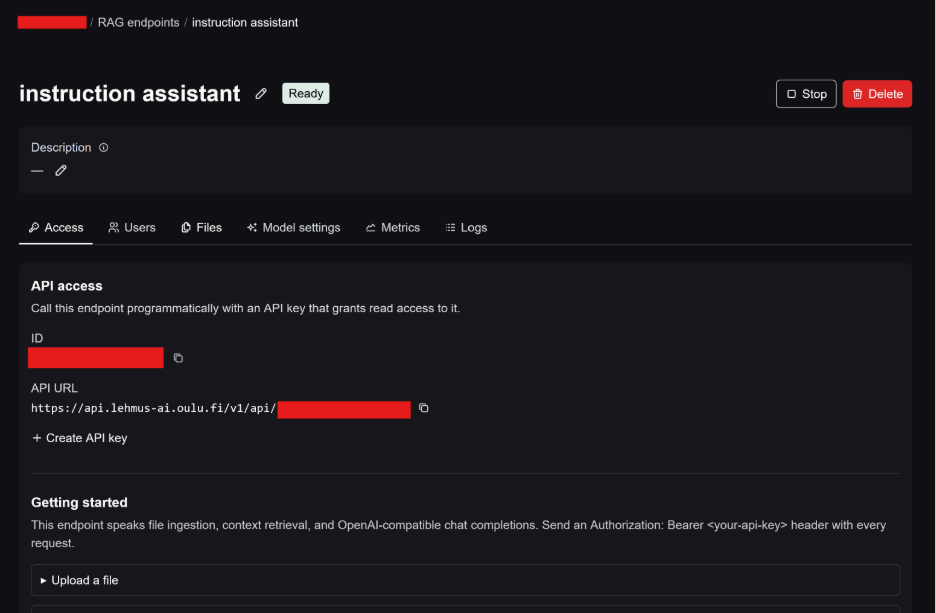
Add material to the RAG
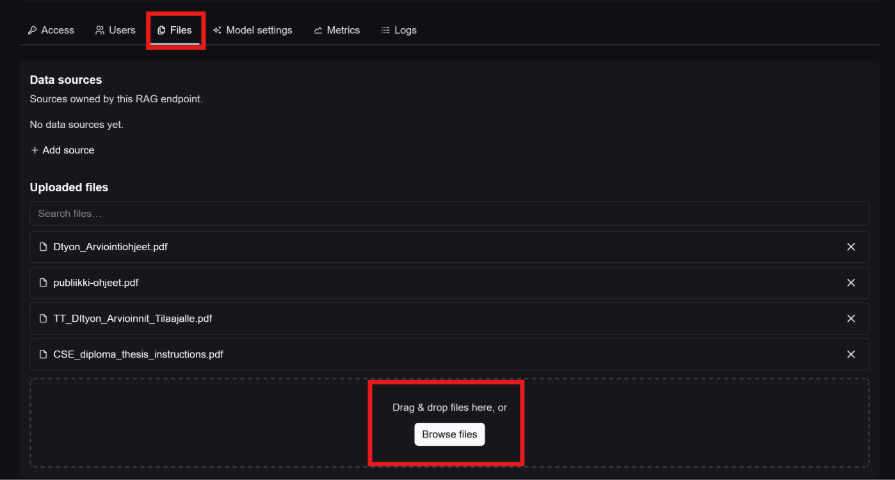
Open the RAG endpoint you have created and go to the Files tab.
You can add files to the RAG by first clicking Upload FIles and then either dragging them into the Drag & drop files here area or clicking Browse files.
The files you have added appear under Uploaded files. The RAG processes the added files and uses their contents to retrieve information.
Note: In addition to individual files, you can also connect separate data sources to the RAG using the Add source function. Supported data sources include S3-compatible storage, Azure Blob Storage and SMB file shares. You can find more information in Configuring a RAG | ConfidentialMind Documentation.
Use the RAG in Chat
Open Lehmus AI Chat and, if necessary, select a language model suitable for your task.
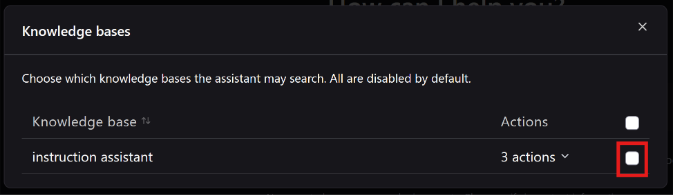
Open the Knowledge Bases selector at the bottom of Chat and select the RAG you have created. The language model can then use the material added to the RAG to retrieve information.
Enter a question in Chat about information you want to find in the material. Phrase your question as clearly as possible and, if necessary, specify that you want the answer to be based on the material added to the RAG.
Note
Remember to check the answers generated by the language model before using them. Bear in mind that RAG does not correct outdated or incomplete material, and important information must be checked against the original document.