Data classification helps protect information and ensures that usage restrictions associated with a file remain attached to it. In M365, data classification is implemented through sensitivity labels that can be applied to individual files.
In some situations, it is useful to apply the same sensitivity label to multiple files at once. With Microsoft Purview Information Protection Client, you can apply sensitivity labels to one or more files, or even to entire folders, directly in Windows File Explorer.
Using a Mac or Linux device?
The tool required for applying sensitivity labels to multiple files at once is available only on Windows. If you use a Mac or Linux computer, you can use the university's virtual desktop (AVD), where the required tool is already installed.
This allows you to classify large numbers of files at once by applying sensitivity labels, even if your own computer is not running Windows.
Before you start
- Install Microsoft Purview Information Protection Client from Company Portal.
- Sign in to Windows using your University of Oulu or Oamk account.
- Ensure that sensitivity labeling has been enabled for your M365 account: It will be available to everyone on 15 November 2026, but pilot groups already have access.
- Contact ICT Services at ict@oulu.fi if you need assistance.
Apply a sensitivity label to files or folders
When Microsoft Purview Information Protection Client has been installed, you can use it in the Windows Explorer. You do not open the application separately: Instead, a new option is available to the Windows Explorer context menu.
1. Navigate to the content to be classified
- Open Windows Explorer using Windows + E.
- Navigate to the folder containing the files.
- Select the files you want to label. You can select a single file, multiple files, or an entire folder
- Ensure that all selected files should receive the same sensitivity label.
Selecting a folder only affects its current contents
Applying a label to a folder affects only the files contained in the folder at that time. Files added later do not automatically inherit the folder label.
The default sensitivity label for newly created or uploaded files is Confidential (3Y). Apply another label when needed.
2. Open the labeling function
- Right-click the selected file or folder.
- Select Apply sensitivity label with Microsoft Purview.
- In Windows 11, select Show more options if the command is not immediately visible.
- This opens the Microsoft Purview Information Protection File Labeler window.
3. Choose a proper sensitivity label
Select the sensitivity label that matches the content.
The available options are the same as elsewhere in M365 (see the National Data Classification Model (for Finnish Universities)):
- open (5W)
- internal (4G)
- confidential (3Y)
- strictly confidential (2A)
- secret (1R)
- private
Always apply the label that reflects the highest required level of protection.
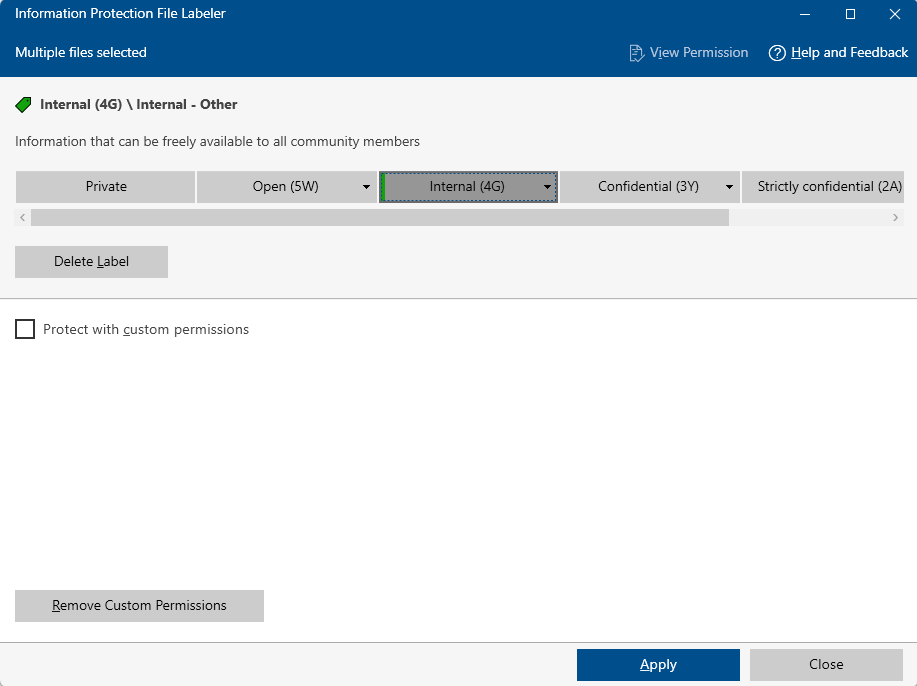
After selecting a classification:
- Read the label description.
- Check any encryption or access restrictions that will be applied.
- Provide a business justification if prompted, for example when lowering a label.
- Confirm the change and wait for the operation to complere.
Use Protect with special permissions only if you understand how it works. Incorrect settings may prevent intended users from accessing files.
What happens after classification?
The sensitivity label remains attached to the file even when the file is:
- sent as an email attachment
- uploaded to a cloud service
- moved or copied to another folder
To change a label later:
- Right-click the file or folder.
- Select Apply sensitivity label with Microsoft Purview.
- Choose a different sensitivity label.
You can also change the sensitivity label of an individual file from within Microsoft 365 applications such as Word, Excel, and PowerPoint.
Removing a sensitivity label or associated protection may require additional permissions and a business justification.
Further information and support
If you need help deploying or using Microsoft Purview classifications, please contact ICT Services: ict@oulu.fi.