It is recommended that you use the same photo in the M365 system as you have on your staff ID card or as a student on your student or 24/7 card.
- In M365 service everyone can change a profile picture.
- The new image will be visible in all M365 applications in a few days.
Note that with this function:
- In Oamk, the image changes in both the M365 and the intra.
- At the university, the image only changes on the M365. In the intra you can change your picture with the “Profile” button of Patio.
Follow these instructions for the image
- Colored portrait, which is a photo of your face
- The picture should show the face and shoulders
- Picture taken against a light background
- The light must not be reflected from the spectacles
- The person must be identified from the image
- No need to have a passport photo
- Saving format jpg
- Dimensions 648 x 648 px
- Image file must be less than 4 MB
How to add or change a profile picture
- Click your profile picture in Teams application.

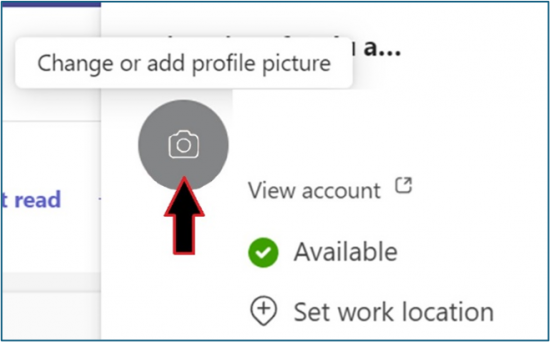
- In the window that opens, click your picture again.
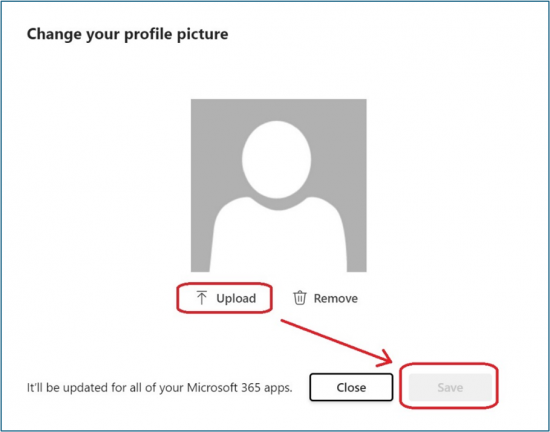
- Click Upload and choose your picture. Save the picture with the button Save.