University of Oulu 4.5.2022
This guide has been made as an internal guide for organizing remote thesis defences at the University of Oulu with Zoom or Teams on your own.
Quick guide and assignments during the thesis defence
-
- The doctoral candidate or custos will create a Zoom or Teams session for the event with special security settings.
- The doctoral candidate: Send your remote defence online address as described in these instructions: Communication guidelines for doctoral candidates.
- The doctoral candidate, custos (or colleague):
Before the thesis defence starts, establish the remote connection in Zoom or Teams. - Custos (or colleague):
During the defence, it is recommended to have a colleague or custos monitor the remote connection with the necessary user rights (Host). - Zoom Host can remove unnecessary user rights via “Host Tools”.
- Custos:
If a part of the audience is present in the hall, it’s not necessary to give remote participants a possibility to ask questions. At the end of the defence, ask the audience to ask their questions in the chat, after which you may allow the person who asked the question to use his/hers microphone. - Custos (or colleague):
At the end of the defence, close the remote connection.
Support contact
Equipment and room support: ict@oulu.fi,
tel. 0294 483 124
Index
1. Remote connection in thesis defences
- Provide the remote connection in either Zoom or Teams: The doctoral candidate or the custos or by one of the other colleagues sets the connection in advance, either in the Zoom service of the University of Oulu (oulu.zoom.us) or in O365’s Teams. To create the session, you must be logged in to the service with your university account.
- The Zoom and Teams Meeting can be attended by 300 participants at a time.
- The person who monitors the remote event (e. g. a colleague or custos) opens Zoom or Teams on their own computer and manages the session from there.
- Before the event begins in the lecture hall, open the Zoom or Teams session on the computer which is used by the doctoral candidate during the defence. The doctoral candidate must log in with his/her University of Oulu user account. Make sure the custos and possible other colleagues with a role in the event, have co-host rights in Zoom or presenter rights in Teams. If a co-host is present, they should have Host rights.
2. Before the defence
A. Prepare the session in Zoom (Candidate’s tasks)
- Make sure your device has the latest DisplayLink driver installed.
- Instruction here: (Frequently asked questions (Presentation Technology)
- Make sure you have the latest version of Zoom.
- Check and update the Zoom Check for Updates option. See Upgrading Zoom to the latest version.
- If you are unsure, please contact ICT services customer support (ict@oulu.fi)
- Log in to Zoom with your university user account in a browser:
- Go to oulu.zoom.us
- Choose Sign in.
- Log in with your university user account.
- Create a Zoom meeting with the following settings:
-
- Select Meetings > Schedule a new meeting.
- Topic: The name of the session is e. g. “Matti Meikäläinen’s defence 20.8.2022 at 12.15”. In the Description field, you can enter, for example, the subject of the defence and the names of the opponent and custos.
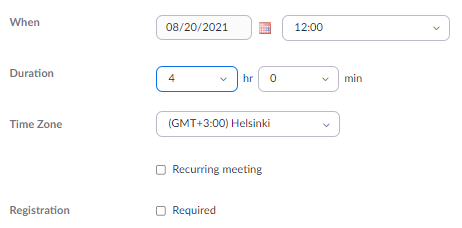
- When: Set the time: find the correct day and set the time (setting the time does not limit the duration of the actual session, the session can be opened and closed at any time). No recurring event, leave the box unchecked.
- Registration: No registration. Leave Required unchecked.
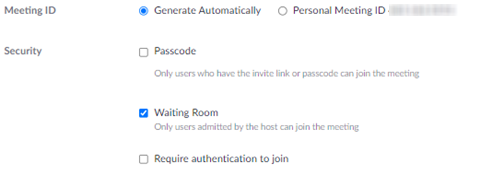
- Meeting ID: Select a random ID, click Generate Automatically.
- Security: You do not need a passcode when you protect your session with a waiting room and other security settings.
- Set the Waiting Room on.
- This will allow you to let the audience to enter Zoom only when the defence actually begins. Before that, the audience waits in the virtual waiting room. However, you should let the opponent in before the audience.
- This will allow you to let the audience to enter Zoom only when the defence actually begins. Before that, the audience waits in the virtual waiting room. However, you should let the opponent in before the audience.
- Don’t require authentication.
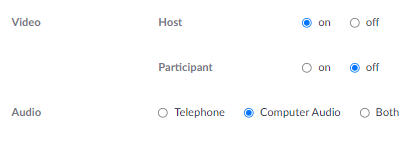
- Video: Video on for the host, off for participants
- Audio: Computer Audio is enough.
- Options: Click Show to see the options. Check only the Mute participants upon entry option. Add your colleagues (use email addresses in this form: firstname.lastname@oulu.fi) who need a co-host role in the event to the Alternative Host field. NB. Only Zoom users with a University of Oulu email address can be added as alternative hosts.
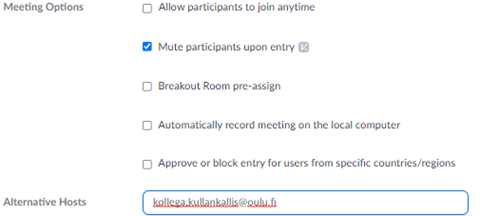
- According to UniOgs instructions, defences will not be recorded!
- After clicking Save, you will get a summary view, where you will also find the Invite Link. Copy the entire link and send it to viestinta@oulu.fi so it will be added to the website. You can share the link to other places too, as you prefer.
If you need to find the link again, just log into Zoom in the browser, choose Meetings, and click the name of your event. Search for the Invite Link .
If you need to change the meeting information, log in, select meeting, open it, scroll to the bottom of the page, and click Edit. Make the changes and be sure to click Save.
The selections ensure the dignity and security of your defence, in case of possible attempts at harassment.
B. Prepare the session in Teams
- Create a Teams calendar event for the defence in your Outlook calendar.
- In the invitation, select Meeting options in the bottom line of the information.
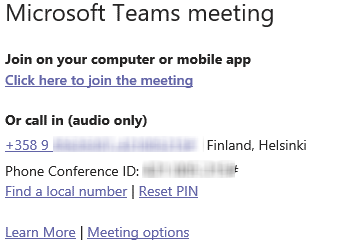
- Make the following selections:
-
- Who can bypass the lobby: Only me or People I invite. Make your choice based on if you plan to invite a colleague to take care of the session during the defence, and if your opponent will participate in the event online.
- Always let callers bypass the lobby: No
- Announce when callers join or leave: No.
- Who can present: Only me or Specific people, as appropriate. Permissions for presenting can also be given later when the connection is already on.
- Allow mic for attendees: No.
- Allow Camera for attendees: No.
- Record automatically: No.
- Allow meeting chat: Disabled.
- Allow reactions: No.
- Provide CART options: No
- Click Save.
With these selections you can ensure the dignity and security of your defence in case of possible attempts at harassment.
2.1 Internet connection during the defence
- If necessary, make sure you have an adequate Internet connection.
- A wired Internet connection is the best option.
- The wireless Eduroam network at the University premises is usually sufficient
- The speed of mobile data connections might vary greatly, so it is not recommended to use those.
- In halls L1-L10 and IT115 the internet connection is connected via the docks USB cable.
2.2. Sound, camera, lighting
- It is a good idea for the remote administrator to have their own headset in the room, so that they can check the sound quality and volume of the broadcast on their own computer at the beginning and during the event, if necessary.
- For the doctoral candidate, the use of a desktop speaker microphone (e.g., a Jabra) is recommended, unless the hall AV technology offers other options, such as a ceiling microphone.
- Please test the sound quality in advance:
- Start a remote connection with Zoom or Teams.
- When you have Zoom session open, open the audio settings (the arrow icon next to the microphone icon at the bottom of the Zoom window) and select Test Speaker & Microphone. Or use the Zoom test page https://oulu.zoom.us/test
- Make sure the only outgoing sound from the hall is the doctoral candidate’s sound source! Dante (ceiling microphone) or Jabra (desk microphone).
- The lecture halls have webcams connected to the hall AV technology.
- Make sure the light is bright enough and that the light preferably comes from the front, to make the image of the doctoral candidate clear. Avoid bright back light, as that easily makes the subject a silhouette.
- Test the camera angle and crop the image so that the doctoral candidate, the opponent, and custos are properly displayed.
Learn how to use remote security features!
During the session, the public should be prohibited from using cameras, a microphone and chat, as well as any annotation tool, so that no unpleasant surprises occur during the defence event. Learn how to make your connection secure:
3. Organize a training session
- Learn how to use the hall’s AV system (projector, sound, computer, camera). Help is available from ICT customer support for the use of the equipment.
- Arrange a training session among the doctoral candidate, custos and opponent, e. g. a few days before the defence.
- Always practice in the hall and with the equipment you will use in the actual event.
- Things to go through during the training include:
- Event program and the use of the remote access (Zoom or Teams) during the program
- The role of each participant
- Use of cameras and microphones. Possibly closing and opening them.
- Agree on who will be the host online, and how he or she can help during the event if needed.
- Test the distribution of material if you plan to do it during the defence.
- Agree on the protocol; for example, how to proceed at the end with the questions. How are you going to take care of the possible audience questions remotely: who opens the chat, how long will you wait for questions, how are you going to verify the identity of the questioner, etc.
- What will you do if the remote connection is lost?
- If the defence is held in the hall and the defence candidate, the custos, the opponent and a part of the audience are present in the hall, the possible disconnection will not affect the success of the defence, but the defence can continue as such.
- If the opponent is participating remotely, all you can do is to wait for the connection to be re-established.
- Of all the hundreds of defences, we have had connection problems in only less than 1 % of all the events.
4. Activities during the session
- Open the remote session for the defence a good time before the defence actually begins.
- Check the microphone and video again.
- Use safety functions! Prevent participants from doing anything extra. In practice, that means all activities during the event.
- Observe the waiting room. If the opponent will participate online, let him/her in before the other audience. Test the picture and sound, possibly also the screen sharing.
- Make sure the opponent and (other persons who need it) have the rights to use the camera and microphone and share their screens remotely.
- When it is time to start the defence, let the audience in from the waiting room. This could be done a few minutes before the start of the actual event. The audio from the hall will be audible to the remote participants.
- At the end of the defence, open the chat to the audience for their questions and comments. Announce this opportunity in the chat or out loud event, so that the remote audience will be aware of the opportunity. After waiting for a while, you can close the chat again.
You can define the permissions under the Security button mentioned above (Select Security, Chat, and in the options in the chat (“three points” icon) and choose Everyone).