OpenCode is an AI-assisted development tool that can utilize Lehmus AI’s Language models for tasks such as generating, editing, and analyzing code.
This guide explains how to connect the language models available on the Lehmus AI: Secure Generative AI Platform to the OpenCode Desktop application. It shows you how to add Lehmus AI to OpenCode Desktop’s Providers settings and enable the language model you want to use.
What you need before you begin
- OpenCode Desktop installed.
- Access rights to the Lehmus AI platform.
- An API key created in the Lehmus AI portal, with the language models you want to use added to it.
- The Public Model IDs of the language models you want to add to OpenCode. You can find a Public Model ID on the Models page in the Lehmus AI portal by opening the details of the relevant language model. Only add models to OpenCode that you have linked to the API key you are using.
- A connection to the University of Oulu network or a VPN connection.
Points to note before use
OpenCode can read and modify project files and run commands. Open it in the project directory you want to work with, review the proposed changes before accepting them, and keep the API key only in the field provided for it.
How to connect the language models
Open the Providers settings
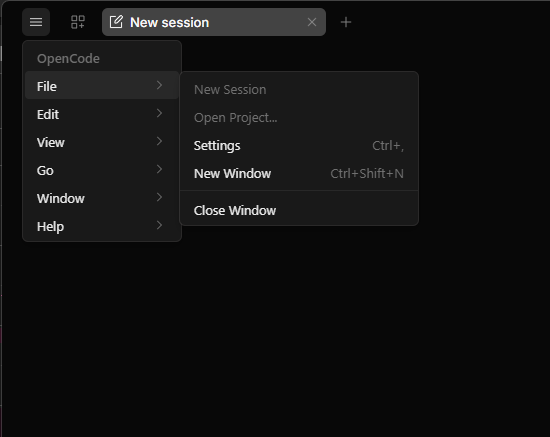
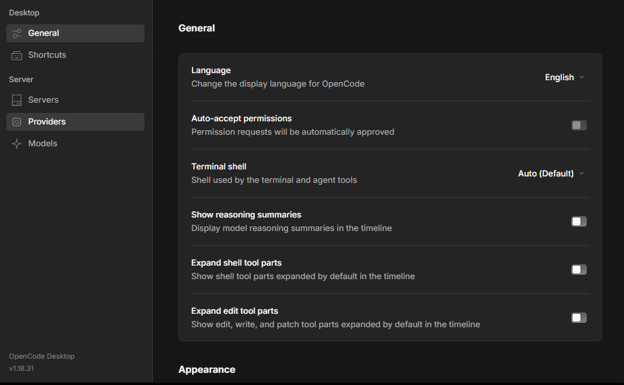
In OpenCode, open the File menu, select Settings, and then open Providers. In the Providers view, you can add Lehmus AI as a new language model provider.
Add a new provider
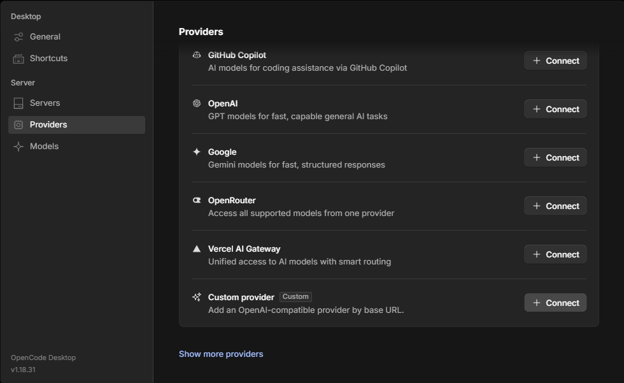
In the Providers view, add a new provider by clicking the Connect button under Custom Provider.
Enter the Lehmus AI details
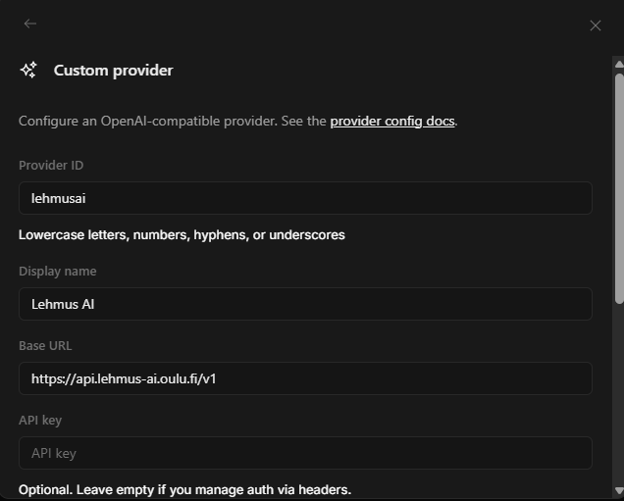
- Enter Lehmus AI as the provider name.
- Enter https://api.lehmus-ai.oulu.fi/v1 as the API address.
- Enter the API key you created in the Lehmus AI portal.
- Then add the Lehmus AI language models you want to use in OpenCode. Use the Public Model ID shown in the Lehmus AI portal as the model identifier, and only add models that are included in your API key. Enter the language model’s Public Model ID in the field on the left and a name by which you can identify the language model in the field on the right.
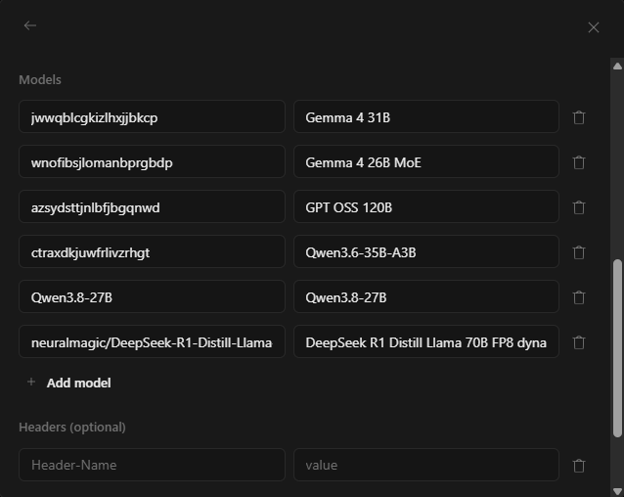
Save the provider settings
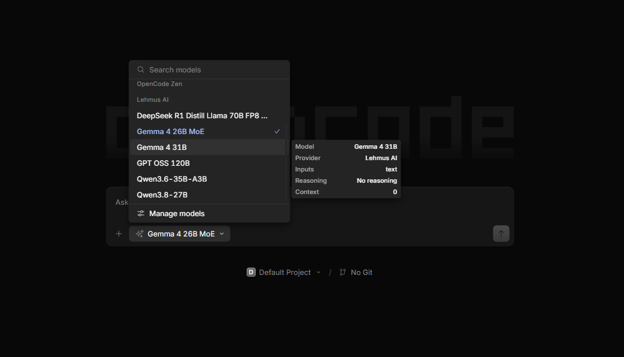
Check the provider name, API address, API key and the language models you have added. Save the settings. The Lehmus AI language models should then become available for selection in OpenCode.
Test the connection
First, send a simple test request, for example: ‘Respond briefly without processing the project files.’ Check that the Lehmus AI provider and the correct language model are selected in OpenCode. Once you receive a response without an error message, the connection is ready to use.
If the connection does not work
Check that:
- you are connected to the University of Oulu network or using a VPN connection
- the API address is https://api.lehmus-ai.oulu.fi/v1
- the API key has been entered correctly in the Lehmus AI provider settings
- the language model you selected is linked to the API key you are using in the Lehmus AI portal
- the Public Model ID shown in the Lehmus AI portal has been used as the model identifier
If the changes you have made do not appear, restart OpenCode. If the connection still does not work after this, you can contact ict@oulu.fi and include the OpenCode version you are using and the error message in your support request. Do not include the API key in the support request.