This guide will help you connect the language models available in the Lehmus AI: Secure generative AI platform service to the Zed editor. With this guide, you can add the Lehmus AI language models to Zed’s LLM providers and use them, for example, in the Agent panel and the Inline Assistant feature.
What you need before you start
- The Zed editor installed.
- Access rights to the Lehmus AI platform. You can find the instructions on the page Lehmus AI: Secure generative AI platform.
- An API key created in the Lehmus AI portal. Do not share your API key with others, as it acts as your personal identifier for the Lehmus AI service.
- The Public Model IDs of the language models that you want to add to Zed.
- A university network or VPN connection.
You can find a list of the available language models and their main supported features in the guide Lehmus AI: Available language models. You can also find each model’s Public Model ID in the Lehmus AI portal, in the details for each model.
Install and open the Zed editor
Download and install Zed in the appropriate way for your operating system. Once Zed has been installed, open the editor.
Open a project in Zed
First open the folder or project with which you want to use the AI assistant. Once the project is open, open Zed’s Agent panel with the keyboard shortcut Ctrl+Alt+I. In Zed, Lehmus AI is used, for example, through the Agent panel.
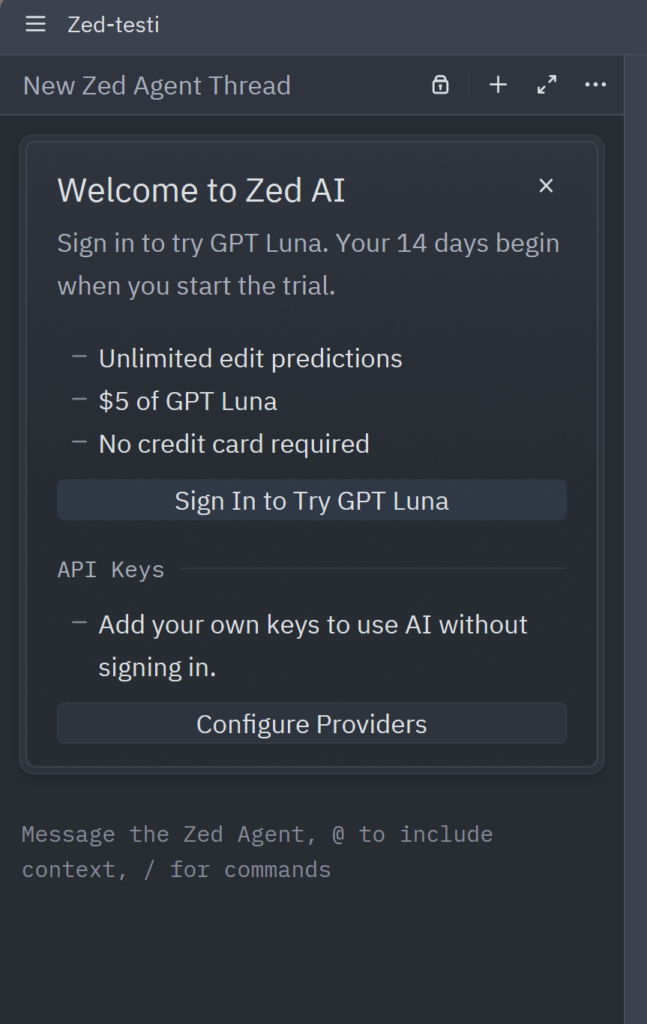
Note when using Zed's AI features
Zed’s Agent panel and Inline Assistant can use files from the open project as context and suggest changes to them. Always check which files and changes you are approving before allowing the assistant to make or save changes. Also make sure that you use Lehmus AI only with projects and data that are permitted to be processed in the service.
Open the LLM provider settings
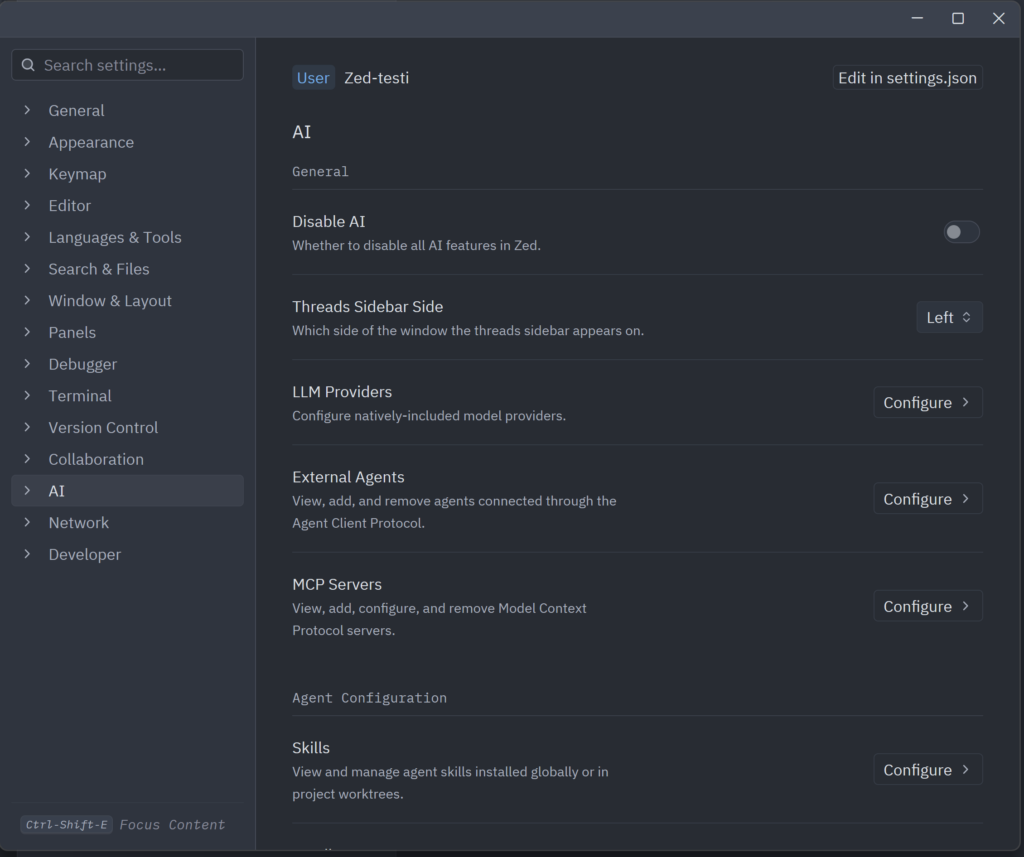
Open the LLM provider settings in either of the following ways:
- Open the Agent panel with the keyboard shortcut Ctrl+Alt+I and go to the provider settings through it.
- Open the main menu from the three lines in the top left-hand corner and select the following items:
- Open Settings
- AI
- LLM Providers
- Configure providers
You do not need to use both methods. It is enough that you reach the LLM Providers view using either method.
Add Lehmus AI as an OpenAI-compatible provider
Configure Lehmus AI in Zed as an OpenAI-compatible provider.
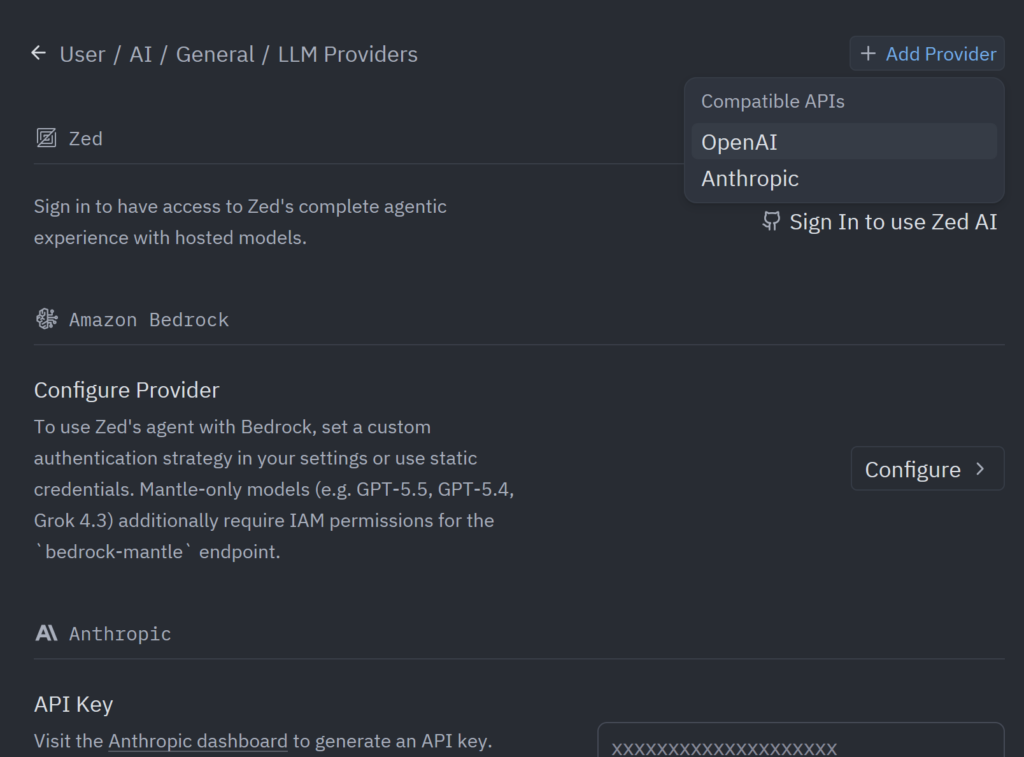
- Enter Lehmus AI as the provider name in the Provider Name field.
- Add https://api.lehmus-ai.oulu.fi/v1 as the API address.
- Enter the API key you created on the Lehmus AI platform. Make sure that the key is linked to all the language models on the Lehmus AI platform that you want to use.
- Then configure the language models that you want to enable in the Models section. In the Model name field, add the model’s Public Model ID, which you can find in the Lehmus AI portal or at Lehmus AI: Available language models – ict.oulu.fi. On the site, you can also find the maximum context lengths of the language models, which are useful, for example, when filling in the Max Completion Tokens field.
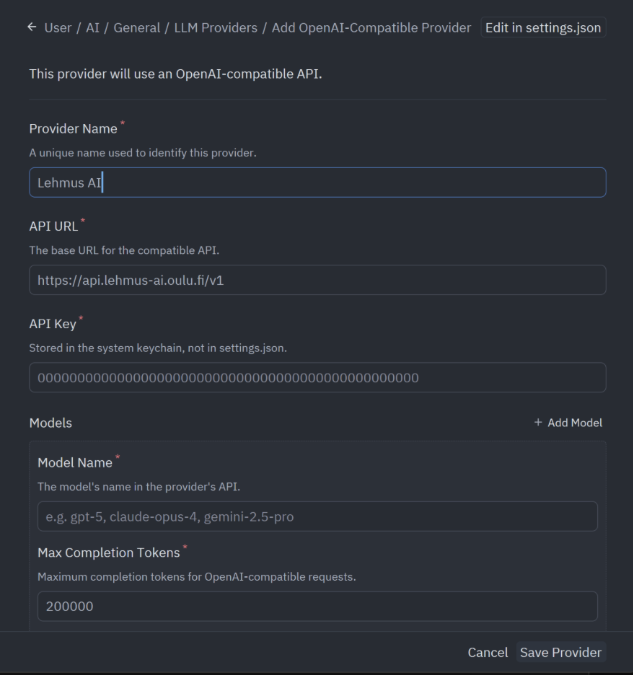
You can, if you wish, edit the language model settings through the settings.json file. This may prove useful especially when the language model’s Public Model ID is not in an easy-to-read and easy-to-remember format, and the user wants to choose, from the model list in the Zed Agent window, the language model whose corresponding Public Model ID they do not remember by heart.
Below is an example snippet of two Lehmus AI language models, one of which has its Public Model ID in a readable format, while the other is in a less user-friendly format. In the example, a separate display_name field has been added for Qwen3.6-35B-A3B, with a name entered in a more readable format.
 "language_models": {

    "openai_compatible": {

      "Lehmus AI": {

        "api_url": "https://api.lehmus-ai.oulu.fi/v1",

        "available_models": [

          {

            "name": "Qwen3.8-27B",

            "max_tokens": 200000,

            "max_output_tokens": 32000,

            "max_completion_tokens": 200000,

            "capabilities": {

              "tools": true,

              "images": false,

              "parallel_tool_calls": false,

              "prompt_cache_key": false,

              "chat_completions": true,

              "interleaved_reasoning": false,

              "max_tokens_parameter": false

            }

          },

          {

            "name": "ctraxdkjuwfrlivzrhgt",

            "display_name": "Qwen3.6-35B-A3B",

            "max_tokens": 200000,

            "max_output_tokens": 32000,

            "max_completion_tokens": 200000,

            "capabilities": {

              "tools": true,

              "images": false,

              "parallel_tool_calls": false,

              "prompt_cache_key": false,

              "chat_completions": true,

              "interleaved_reasoning": false,

              "max_tokens_parameter": false

            }

          }

        ]

      }

   }

}
Select a language model and test the connection
Open the Agent panel and write a short test prompt, for example: Briefly explain what this project does. If the response is generated normally, the connection to the Lehmus AI language model is working.
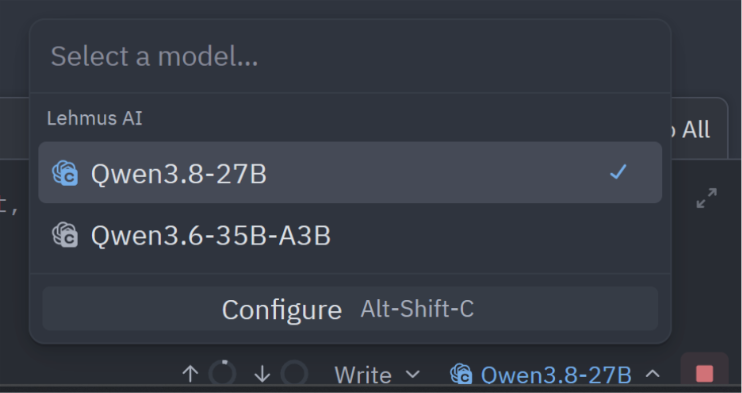
You can change the Lehmus AI language model you use if you configured the details of more than one language model in the previous step.
If the connection does not work
- Check that the VPN connection is on or that you are on the university network.
- Check that your Lehmus AI access rights are valid.
- Check that the API key has been copied correctly and does not contain any extra spaces.
- Check that the API key is linked to the language models you are trying to use.
- Check that the API address in Zed’s settings and the model’s Public Model ID match the values shown in the Lehmus AI portal.
- If you have used an environment variable for the API key, restart Zed after making the change.
If you still cannot connect to the Lehmus AI language models after carrying out the steps above, please contact ict@oulu.fi.