Turning off desktop notifications for new emails is a good practice if you share or record your screen, or if you want to focus on your tasks without being distracted by incoming messages.
How to disable Outlook desktop notifications:
- New Outlook
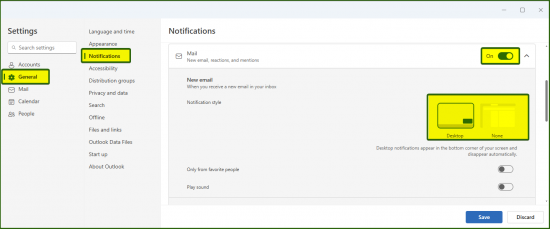
- Open Settings (cogwheel icon) from the top right.
- The settings menu should default to: Accounts – Your accounts, select General and then Notifications.
- You can either turn notifications completely off, or switch the Notification style from Desktop to None, or if you want, you can enable notifications for certain people.
- Press Save.
- Old Outlook
- From the top left, click on File.
- Now from the bottom left, click on Options.
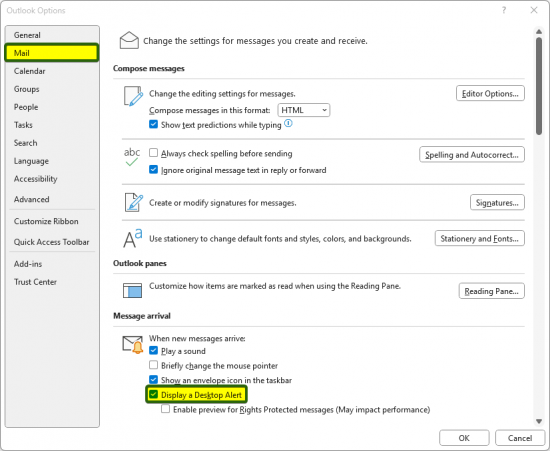
- The Options menu will open in a new window, click on Mail.
- Untick the option Display a Desktop Alert and press OK.